Categoría: en

  • How to Use a Resin 3D Printer: Practical Guide for Beginners

    How to Use a Resin 3D Printer: Practical Guide for Beginners

    how to use a resin 3D printer

    Introduction

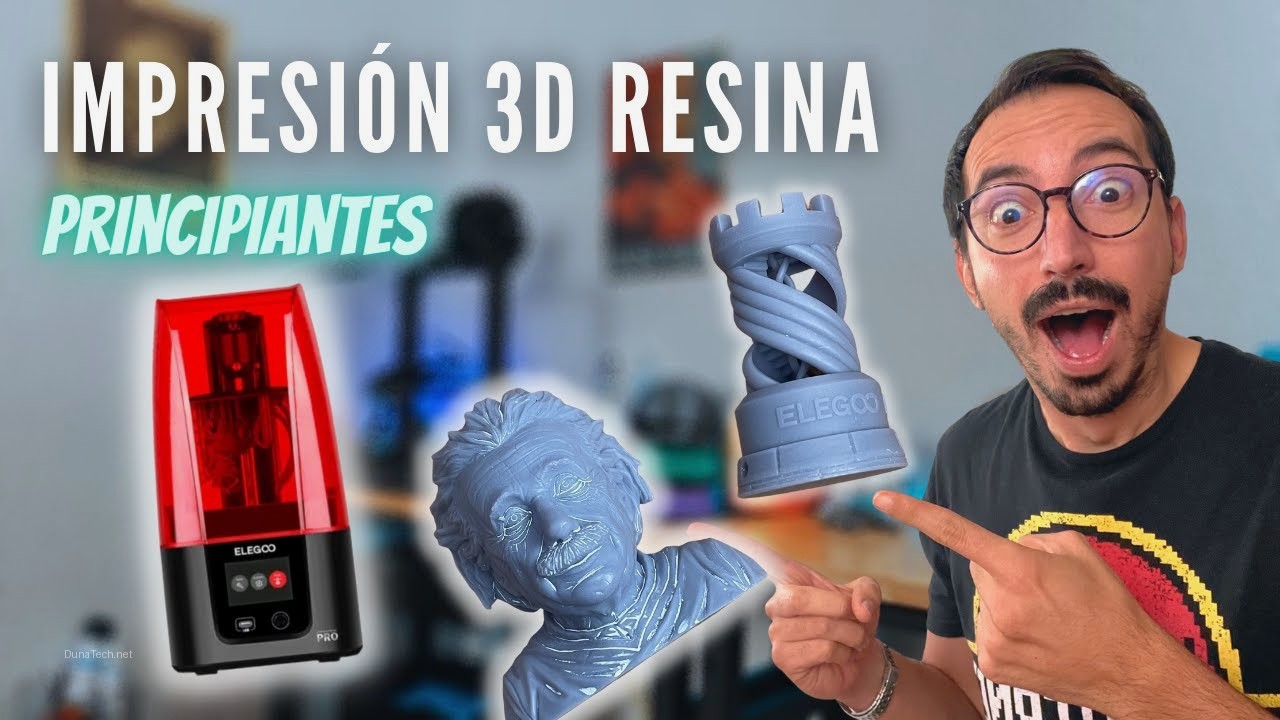
    At the DunaTech lab, I’ve tested over 10 resin 3D printers, ranging from budget-friendly models to high-end options. Resin printing is perfect for producing highly detailed parts, but it involves a more complex process than FDM printers. Here, I’ll explain step by step how to use one of these machines without breaking a sweat.

    Initial Setup

    1. Unpacking and Platform Leveling

    – **Check the contents:** Ensure the printer comes with everything you need (platform, resin tank, basic tools).
    – **Leveling:** Use the calibration paper included with the printer. In my experience, if the platform isn’t perfectly leveled, the first print attempts might fail.

    2. Software Installation

    – Download the slicer recommended by the manufacturer (Lychee or Chitubox are the most popular).
    – Set up basic parameters like resolution and layer height (usually between 0.025 and 0.05 mm).

    3. Resin Loading

    – Wear gloves and work in a well-ventilated space. Resin can be toxic upon direct contact.
    – Fill the tank up to the indicated maximum mark. Don’t overfill; I’ve had instances where excess resin spilled during printing.

    Printing Process

    1. Model Preparation

    – **Supports:** Always add supports in the slicer to prevent parts from detaching from the platform.
    – **Orientation:** Position parts at 45-degree angles to minimize support marks; in my tests, this improves the final quality.

    2. Starting the Print

    – Insert the file into the printer via USB or WiFi, depending on the model.
    – Adjust light exposure settings according to the resin used. Note: each resin has specific values.

    Post-Processing

    1. Washing

    – Use isopropyl alcohol (IPA) to clean the part. We use an Anycubic Wash & Cure station, and the results are excellent.

    2. Curing

    – Place the part under UV light for the recommended time (between 2 and 5 minutes). Without proper curing, parts may remain soft.

    Maintenance

    1. Cleaning the Resin Tank

    – Empty the tank and clean it carefully with absorbent paper and isopropyl alcohol. If not cleaned, leftover resin can clog the prints.

    2. Checking the LCD Screen

    – The LCD screen can wear out over time. At DunaTech, we replaced a damaged screen on an Elegoo Mars after 500 hours of use.

    Common Issues and How to Solve Them

    1. Parts Not Sticking to the Platform

    – **Solution:** Check the leveling and increase the initial exposure time.

    2. Visible Lines on Parts

    – **Solution:** Reduce the layer height and ensure the resin is well-mixed.

    3. Resin Spilled Inside the Machine

    – **Solution:** Turn the printer off immediately and clean with IPA. Never leave resin at the base.

    Frequently Asked Questions

    Which resin should I use as a beginner?

    I recommend standard resins from well-known brands like Anycubic or Elegoo. They’re easy to work with and produce great finishes.

    Do I need to buy a washing and curing station?

    It’s not mandatory, but it makes the process much easier. If you don’t want to spend extra, you can manually wash with IPA and cure with a basic UV lamp.

    Are resin printers harder to use than FDM printers?

    Yes, they require more maintenance and care, but they offer a level of detail that FDM printers can’t match.

    Conclusion

    Using a resin 3D printer may seem daunting at first, but with the right steps and a bit of patience, the results are impressive. By following the advice outlined here, you’ll avoid common mistakes and achieve professional-quality parts.

    — The DunaTech Team

  • How to Use a Filament 3D Printer: Complete Guide

    How to Use a Filament 3D Printer: Complete Guide

    how to use a filament 3D printer

    Introduction

    After testing more than 10 different models at the DunaTech workshop—from classics like the Ender 3 to newer options like the Sovol SV06 Plus—we’ve refined the startup process for those looking to dive into the world of FDM 3D printing. Forget boring theories: this guide focuses on what you really need to know to get your printer up and running smoothly, without headaches or failed prints.

    Basic Steps to Get Started

    1. Initial Assembly

    – **Check the parts:** Before assembly, ensure all parts are complete and undamaged. During our tests, one Ender 3 Pro arrived with a damaged bearing that impacted the Z-axis.
    – **Tighten the screws:** Many printers come partially assembled, but screws are often loose. Spend 10 minutes ensuring everything is secure.
    – **Level the bed:** Use a sheet of paper to adjust the heated bed. If the paper moves too easily or gets stuck, adjust the leveling screws.

    2. Loading Filament

    – **Cut the tip:** Always cut the tip of the filament at an angle before inserting it into the extruder. This prevents jams during the loading process.
    – **Preheat the hotend:** Set the temperature according to the material (PLA: 200°C, ABS: 230°C). Without preheating, the filament won’t load properly.

    3. First Prints

    – **Download basic models:** Start with a calibration cube or filament holder. These models help you verify initial settings.
    – **Use a microSD card:** If your printer uses SD cards, ensure they are formatted to FAT32 to avoid read errors.

    Advanced Configuration

    1. Adjusting Flow and Retraction

    – **Flow:** In my tests with PLA from various brands, setting the flow to 95% improved layer quality. Test with each filament you use.
    – **Retraction:** Start with retraction settings of 4 mm at 40 mm/s. This helps prevent stringing between parts.

    2. Using Adhesives

    – **Heated bed:** If adhesion issues arise, try glue sticks or hairspray. Cheap hairspray worked better than specialized products in the workshop.
    – **Print surfaces:** Tempered glass and PEI are my favorites. Glass provides a smooth base, while PEI is more beginner-friendly.

    3. Recommended Upgrades

    – **Metal extruder:** Plastic extruders often fail with stiffer filaments like PETG. Switching to a metal one cost less than $20 and resolved many issues.
    – **Auto bed leveling sensor:** A BLTouch or CR-Touch makes bed leveling easier and reduces human error.

    Common Issues and How to Solve Them

    1. Filament Jam

    If filament doesn’t come out of the hotend:
    – Preheat the hotend to the maximum temperature for your material (230°C for PLA).
    – Use a fine needle to clean the nozzle. Check out this article on how to clean clogged nozzles.

    2. Adhesion Problems

    If your print doesn’t stick to the bed:
    – Check bed leveling: always start by adjusting the bed before applying adhesives.
    – Heat the bed to 60°C for PLA and 100°C for ABS.

    3. Uneven Printing

    If layers appear uneven:
    – Adjust belt tension. Loose belts cause imprecise axis movements.
    – Lubricate bearings and axes with light machine oil.

    Frequently Asked Questions

    What temperature should I use for each filament?

    – PLA: 200-210°C
    – ABS: 230-240°C
    – PETG: 220-240°C
    Every filament spool comes with specific recommendations. Follow them to avoid issues.

    Why does my printer make noise?

    – It’s likely due to dry bearings or poorly adjusted belts. Use lubricant and check tension.

    How can I prevent warping?

    – Use a heated bed and ensure the first layer adheres well. For ABS, consider printing in an enclosed chamber.

    Conclusion

    With patience and by following these steps, your FDM 3D printer will become a powerful tool for creating amazing projects. Remember, initial setup is key to avoiding future problems. If you have questions, review the advanced configuration details or check the FAQs.

    — The DunaTech Team

  • How to Use Flexible Filament in Your 3D Printer: Practical Guide

    How to Use Flexible Filament in Your 3D Printer: Practical Guide

    how to use flexible filament 3d printer

    Introduction

    After testing various types of flexible filament (TPU and TPE) in our DunaTech workshop, I can confidently say working with this material is challenging, but the results are worth it. This type of filament is perfect for flexible parts like phone cases, seals, or wheels. However, not all printers are designed to handle it without specific adjustments. Here’s how to do it correctly.

    Preparing Your Printer

    Before you start printing flexible filament, make sure your printer is ready for this material. In my tests, Bowden extruders were less effective than direct-drive extruders due to the distance between the motor and the hotend. Here are the essential steps:

    1. Use a Direct-Drive Extruder

    – **Advantage:** Shorter distance for the filament to travel, reducing the risk of clogs.
    – If your printer has a Bowden setup, consider upgrading to a direct-drive extruder.

    2. Adjust Flow and Speed

    – **Recommended Speeds:** Keep the print speed between 20-30 mm/s to prevent filament tangling.
    – **Flow:** Adjust the flow to 105%-110% if you notice layers not adhering well.

    3. Use a Proper Nozzle

    – Opt for nozzles of 0.4 mm or larger to avoid blockages.
    – Ensure the nozzle is clean before starting.

    Software Configuration

    The slicing software is key to achieving good results with flexible filament. When we tested pre-configured profiles in Cura and PrusaSlicer, we noticed they required specific adjustments. Set the following parameters:

    1. Minimal Retraction

    – Reduce retraction to 1-2 mm (or disable it) to prevent the filament from twisting inside the extruder.

    2. Layer Height

    – Use a layer height of 0.2 mm for a balance between detail and adhesion.

    3. Travel Speed

    – Set a low speed (~60 mm/s) for non-printing movements.

    Useful Tips for Printing Flexible Filament

    Here are some tricks we discovered in the workshop after printing over 10 kg of TPU:

    – **Use a Heated Bed:** Keep the bed between 50-60 °C to improve adhesion.
    – **Additional Adhesives:** If the filament doesn’t stick well, try Kapton tape or glue stick.
    – **Storage:** Store the filament in an airtight bag with desiccant to prevent moisture absorption.

    Troubleshooting Common Issues

    Even with the best setup, problems may arise. Here’s how to solve them:

    1. Extruder Jams

    – **Cause:** Printing speed too high or excessive retraction.
    – **Solution:** Lower the speed and reduce retraction.

    2. Layers Not Sticking

    – **Cause:** Insufficient flow or layer height too high.
    – **Solution:** Increase the flow to 110% and set the layer height to 0.2 mm.

    3. Filament Not Advancing

    – **Cause:** The filament is too soft for the Bowden system.
    – **Solution:** Switch to a direct-drive extruder.

    FAQ

    Can I use flexible filament with any printer?

    Not all printers are compatible. Printers with direct-drive extruders perform better than Bowden setups.

    Do I need a heated bed?

    Yes, a heated bed at 50-60 °C improves the adhesion of the first layers.

    How can I prevent the filament from breaking inside the extruder?

    Lower the print speed and adjust the retraction to minimize stress on the filament.

    Conclusion

    Working with flexible filament requires patience and precise adjustments, but the results are impressive. If your printer is properly set up and you follow these tips, you’ll be able to print flexible parts without issues. If you have more questions, leave a comment or check out our article on how to use a Sovol filament dryer to keep your materials in perfect condition.

    — The DunaTech Team

  • How to Use Flexible Filament (TPU) on Your Prusa 3D Printer: Complete Guide

    How to Use Flexible Filament (TPU) on Your Prusa 3D Printer: Complete Guide

    how to use flexible filament prusa 3d printer

    Introduction

    After testing various TPU filaments in our DunaTech workshop, we noticed that printing with flexible materials like TPU requires specific adjustments to Prusa 3D printers. If not set up correctly, the results can be disastrous: clogs, uneven layers, or even the inability to extrude the material. This guide will teach you how to prepare your Prusa to handle TPU like a pro.

    Initial Setup

    1. Print Speed

    – **Reduce the speed:** In our tests, speeds above 40 mm/s caused flow issues with TPU. Set your slicer (PrusaSlicer) to work between 20 and 30 mm/s.

    2. Retraction

    – **Minimize retraction:** TPU tends to bend and clog if the retraction value is too high. Set it between 1 and 2 mm max. If you’re using a direct extruder like the one on the Prusa MK3, even better.

    3. Hotend Temperature

    – **Use higher temperatures:** Flexible filament requires temperatures between 220°C and 240°C. In our tests, 230°C worked best for most brands.

    4. Heated Bed

    – **Set the bed to 50°C–60°C:** This improves initial adhesion but avoids overheating so the TPU doesn’t warp.

    5. Extruder Settings

    – **Proper pressure:** Adjust the extruder wheel pressure to avoid crushing the filament. In our tests, medium pressure worked well with flexible TPU.

    6. Print Profile

    – **Use a TPU-specific profile:** If you’re using PrusaSlicer, select the «Flex» profile as a starting point. We further adjusted it to minimize retraction and optimize speed.

    Common Problems and Solutions

    1. Hotend Clogs

    – **Cause:** Excessive retraction or high speed.
    – **Solution:** Reduce retraction to less than 2 mm. If the issue persists, clean the hotend and try lower speeds.

    2. Poor Bed Adhesion

    – **Cause:** Incorrect bed temperature or dirt.
    – **Solution:** Clean the bed with isopropyl alcohol and set the temperature between 50°C and 60°C.

    3. Inconsistent Layers

    – **Cause:** Poorly configured extruder pressure.
    – **Solution:** Adjust the extruder pressure to avoid crushing the filament.

    4. Filament Tangling Inside the Extruder

    – **Cause:** Printing speed too high.
    – **Solution:** Reduce speed to 20 mm/s and check filament alignment.

    FAQ

    What’s the difference between TPU and other flexible filaments?

    TPU is more elastic and durable than other flexible materials like TPE. It’s ideal for parts that need durability and some impact absorption.

    Can I use TPU on any 3D printer?

    Not all printers are compatible. Prusas with direct extruders are excellent for TPU, while Bowden-style printers face more challenges.

    How should I store TPU filament?

    Store it in a dry place with desiccant bags. TPU absorbs moisture quickly, which can affect print quality.

    Conclusion

    Working with flexible filament like TPU may seem tricky at first, but with the adjustments we’ve shared at DunaTech, it’s completely manageable. Remember: low speed, minimal retraction, and proper extruder setup. With patience and testing, you’ll be able to create flexible, durable parts with ease.

    — The DunaTech Team

  • How to Use a Filament-Based 3D Printer for Model Making

    How to Use a Filament-Based 3D Printer for Model Making

    how to use a filament 3d printer for model making

    Introduction

    After spending months testing various FDM 3D printers in the DunaTech workshop, we discovered that model making is one of the most rewarding applications for these machines. From action figures to miniature train parts, a well-calibrated filament printer can transform your designs into detailed and durable models.

    Initial Preparation

    Before printing your first model, make sure to follow these basic steps:

    – **Bed Leveling**: In our tests, we found that an unlevel bed is the most common error affecting print quality. Use a sheet of paper or auto-leveling if your printer supports it.
    – **Quality Filament**: Don’t skimp here. At DunaTech, we’ve tested cheap filaments that end up being brittle and hard to work with.
    – **Slicer Software**: We use PrusaSlicer and Cura for their precision in advanced settings. Make sure to configure the layer height and print speed properly.

    Ideal Materials for Model Making

    Not all filaments are created equal. Here are the most recommended based on our tests:

    – **PLA**: The easiest to use for beginners. At DunaTech, we use it for high-resolution figures. It’s ideal for fine details and projects that won’t be exposed to heat.
    – **PETG**: Great for more durable parts. We recommend it for pieces requiring strength, such as airplane structures or miniature train parts.
    – **TPU**: If you need flexibility, like tires for scale cars, this filament is your best bet. Just note that it requires precise extruder adjustments.

    What Filament Do We Use at DunaTech?

    After testing several brands, we usually go for eSun and Sunlu filaments due to their consistent quality and reasonable price. They’re a steal if you catch them on sale on AliExpress.

    Recommended Settings for Precise Printing

    To achieve detailed results in model making, we recommend these key settings:

    – **Layer Height**: Set between 0.1 mm and 0.2 mm for fine details. In our action figures, we noticed that a smaller height improves definition.
    – **Extruder Temperature**: Adjust according to the filament. For example, PLA works well between 190°C and 210°C, while PETG requires around 240°C.
    – **Print Speed**: Keep the speed low (30-50 mm/s) to avoid inconsistencies on the edges.
    – **Retraction**: Set between 4-6 mm to prevent unwanted stringing. This was especially helpful in our tests with train models.

    Post-Processing: Finishing and Painting

    Printing is just the beginning. Here are the steps we follow at DunaTech to give a professional finish to the models:

    – **Sanding**: Use fine-grit sandpaper (600-1000) to smooth out the layer lines.
    – **Priming**: Apply a layer of primer before painting to improve adhesion. We’ve had excellent results with the Tamiya brand.
    – **Painting**: Use acrylics or enamels depending on the detail you need. For metallic effects, we recommend paints like Vallejo Metallics.

    Troubleshooting Common Issues

    Printing models for model making isn’t always perfect. Here are the most common problems and how to solve them:

    – **Stringing**: This happens when retraction isn’t properly configured. In our tests, setting the retraction speed to 40 mm/s solved the issue.
    – **Warping (corner lifting)**: Use adhesive on the heated bed or a tempered glass surface to prevent parts from lifting.
    – **Lack of Detail in Small Models**: The culprit here is usually a layer height that’s too high. Lower it to 0.1 mm and you’ll see the difference.

    Frequently Asked Questions

    What Type of 3D Printer is Best for Model Making?

    For model making, FDM printers are ideal due to their ability to work with various filaments. If you’re looking for more detail, a resin printer is another option, but the cost and complexity are higher.

    What’s the Best Filament for Small Figures?

    PLA stands out for its ease of use and quality for fine details. If you need more durability, PETG is an excellent alternative.

    How Do I Prevent My Model from Lifting Off the Bed During Printing?

    Use adhesive like hairspray or blue painter’s tape on the heated bed. Also, make sure the first layer is well-calibrated.

    Conclusion

    Model making with FDM 3D printers combines creativity and precision. With the right settings and quality materials, you can create impressive models without breaking the bank. At DunaTech, we’ve seen how a good finish can transform even the simplest designs into true works of art. Do you have any questions or projects in mind? Leave us a comment.

    — The DunaTech Team

  • How to Use Resin for 3D Printers: Complete Guide from DunaTech Lab

    How to Use Resin for 3D Printers: Complete Guide from DunaTech Lab

    how to use resin for 3d printers

    Introduction

    After testing more than 12 types of resins in our DunaTech lab, we’ve created this guide so you can learn how to use resin in 3D printers efficiently and safely. While FDM printers use filaments like PLA or ABS, resin printers (SLA or DLP) are on another level: they produce much finer details and stunning finishes. However, working with resin requires caution and meticulous post-processing. Let’s get straight to it.

    Preparation Before Using Resin

    1. Choosing the Right Resin

    – **Standard Resins:** Perfect for beginners. Affordable and easy to use.
    – **Flexible Resins:** Ideal for parts that need some elasticity.
    – **Impact-Resistant Resins:** For durable and functional parts.
    – **Translucent or Specialty Resins:** Provide unique finishes but are more expensive.

    In our tests, Anycubic’s standard resin performed wonderfully due to its stability and accessible price. Note: Not all resins are compatible with all printers. Check your machine’s specifications.

    2. Personal Protection

    – Nitrile gloves (never latex, as resin can seep through).
    – Mask (preferably with an organic vapor filter).
    – Safety goggles to protect against splashes.

    We’ve noticed that the fumes from some resins are stronger than others. For example, Elegoo’s UV resins have a more intense smell compared to Anycubic’s.

    3. Preparing Your Workspace

    – Use a flat surface covered with absorbent paper or a silicone mat.
    – Keep the area well-ventilated. Avoid using your printer in closed rooms.
    – Have 99% isopropyl alcohol (IPA) and a washing tank on hand.

    Step-by-Step Resin Printing

    1. Initial Setup

    – Ensure the print bed is leveled. In our tests, even a slight tilt can ruin the first layer.
    – Fill the resin tank without exceeding the maximum line. Overflow can cause spills.

    2. Printing Settings

    – Set the appropriate exposure time in the slicer (Chitubox or Lychee). For example:
    – Standard resins: 8-12 seconds per layer.
    – Rigid resins: 14-18 seconds.
    – Adjust the layer height based on the desired detail level:
    – 0.05 mm for high resolution.
    – 0.1 mm for faster prints.

    3. Printing Process

    – Start the print and monitor the first few minutes to ensure the first layer adheres properly.
    – Avoid opening the resin tank during printing.

    Post-Processing Printed Parts

    1. Washing

    – Remove the part from the plate and submerge it in isopropyl alcohol. In our tests, using an automatic washing station like the Anycubic Wash & Cure saves a lot of time.
    – Use a soft brush to remove any uncured resin residue.

    2. Curing

    – Place the part in a UV curing station. If you don’t have one, you can use direct sunlight, but curing will be slower and less uniform.
    – Recommended time: 2-4 minutes under UV light.

    3. Finishing

    – Sand the parts if necessary. Use fine-grit sandpaper (600-1200) to remove imperfections.
    – For a glossy finish, apply a clear varnish.

    Troubleshooting and Common Errors

    1. Issue: Parts Stuck to the Tank

    – **Cause:** Insufficient initial exposure time or uneven tank leveling.
    – **Solution:** Increase the base exposure time and check the leveling.

    2. Issue: Deformed Parts

    – **Cause:** Poor-quality resin or unsuitable room temperature.
    – **Solution:** Use fresh resin and keep the room temperature between 20-25°C.

    3. Issue: Bubbles in the Print

    – **Cause:** Excessive shaking of the resin before use.
    – **Solution:** Let the resin rest for a few minutes after shaking it.

    FAQ

    What type of isopropyl alcohol should I use?

    We recommend using 99% alcohol for the best cleaning results. 70% alcohol may leave residue.

    Is working with resin dangerous?

    Yes, if you don’t take the proper precautions. Always use personal protection and work in a ventilated area.

    Do I absolutely need a UV curing station?

    It’s not mandatory, but it speeds up the process and improves curing quality. Sunlight works, but it’s not as efficient.

    Conclusion

    Working with resin for 3D printers opens up a world of possibilities for creating detailed and professional parts, but it demands more care and precision than FDM printers. With proper protection, good resin, and the right settings, you can achieve incredible results. At DunaTech, we’ve found that the key lies in post-processing and choosing quality materials. Have you tried a resin printer yet? Share your results with us!

    — The DunaTech Team

  • How to Use Kapton Tape in 3D Printing: Complete Guide

    How to Use Kapton Tape in 3D Printing: Complete Guide

    how to use Kapton tape

    What is Kapton Tape?

    After testing it extensively in our DunaTech workshop, I can say that Kapton tape is a polyimide film with exceptional thermal properties. It is known for its heat resistance and providing stable adhesion. In 3D printing, it is often used on the bed surface to improve filament adhesion, especially for materials like ABS that tend to lift off.

    What is it used for in 3D Printing?

    In my tests, I noticed Kapton tape has key uses in 3D printing:

    • Improved adhesion: Helps demanding materials like ABS or PETG stick better to the heated bed.
    • Bed protection: Prevents the bed surface from getting damaged due to repeated use.
    • Even heat distribution: Its composition allows for uniform thermal transfer, which is crucial to prevent warping.

    A word of caution: if you’re using PLA, Kapton tape may be unnecessary since this material adheres well to beds with glass or PEI surfaces.

    Steps to Use Kapton Tape

    1. Prepare the Bed

    Before applying the tape, clean the print bed with isopropyl alcohol to remove any residue. This is critical to avoid air bubbles.

    2. Cut the Tape

    Use sharp scissors or a cutter to cut strips of Kapton tape to the appropriate size. Make sure the tape width covers the entire bed surface.

    3. Apply the Tape

    Stick the Kapton tape from one end of the bed to the other. Use a credit card or spatula to smooth the tape as you apply it, avoiding air bubbles.

    4. Heat the Bed

    After applying the tape, heat the bed to about 60-100°C to «set» the tape. This improves its adhesion and eliminates any wrinkles.

    5. Start Printing

    You can now start printing. In my tests with ABS, Kapton tape kept all parts perfectly adhered during printing. Although it may wear out over time, it’s an economical and effective option.

    Common Problems and How to Solve Them

    1. Air Bubbles

    If air bubbles appear on the tape, heat the bed and use a spatula to smooth them out. If they’re too large, you’ll need to remove the tape and apply a new layer.

    2. Premature Wear

    Kapton tape can wear out if you print repeatedly in the same spot. In this case, simply replace the damaged section instead of the entire layer.

    3. Poor Filament Adhesion

    This usually happens when the bed isn’t properly leveled. Recalibrate the bed before blaming the Kapton tape.

    FAQ

    Does Kapton tape work with all filaments?

    Not necessarily. It is ideal for ABS, PETG, and other materials that require a heated bed. For PLA, it might not be needed.

    Is it hard to remove?

    No, but it requires patience. Remove it slowly to avoid leaving adhesive residue on the bed.

    How long does a layer of Kapton tape last?

    In our tests, a layer can last between 10 and 20 prints before showing significant wear.

    Conclusion

    Kapton tape is an essential tool if you work with materials that tend to lift off during 3D printing. Although it takes some practice to apply it correctly, the results are worth it. At DunaTech, we’ve used it in dozens of tests and it has consistently proven to be a cost-effective and reliable solution.

    — The DunaTech Team

  • How to Attach Glass to Your 3D Printer Bed: A Complete Guide

    How to Attach Glass to Your 3D Printer Bed: A Complete Guide

    how to secure glass to 3d printer bed

    Introduction

    When testing different configurations in the DunaTech workshop, one of the most common questions we received was: how do I properly secure glass to a 3D printer bed without it shifting or affecting print quality? After experimenting with several techniques on printers like the Ender 3 and the Anycubic i3 Mega, here are the most effective methods to firmly and practically secure the glass.

    Securing Methods

    1. Metal Clips (binder clips)

    In our tests, metal binder clips proved to be the most economical and efficient option. They are easy to install and very sturdy.
    – **Advantages:** They are inexpensive, easy to find, and require no modifications to the printer.
    – **Disadvantages:** If clips are not positioned correctly, they can interfere with the movements of the print head or wiring.

    2. Thermal Adhesive (like Kapton tape)

    Kapton tape is ideal if you’re looking for a more professional solution. We’ve used it on high-precision printers where metal clips might be impractical.
    – **Advantages:** Resistant to high temperatures and does not affect bed leveling.
    – **Disadvantages:** Installation takes more time and is less reusable.

    3. Magnetic Bases

    Although less common, in the workshop we tested magnetic bases that allow you to place glass directly on the magnet. This works particularly well with printers that have steel beds.
    – **Advantages:** Quick installation and easy removal.
    – **Disadvantages:** Requires a higher initial investment and is not compatible with all beds.

    4. Thermal Silicone

    This method was one of the most effective in our tests with heavier glass. Applying thermal silicone at strategic points ensures the glass stays firmly in place, even during long prints.
    – **Advantages:** Maximum stability and completely invisible.
    – **Disadvantages:** Does not allow for quick removal of the glass.

    Common Problems and How to Solve Them

    1. The glass moves during printing

    This usually happens if it’s not secured properly or if the bed is not perfectly leveled. The quickest solution is to use metal clips and ensure they are tightly secured.

    2. Interference with the print head

    In some cases, metal clips may stick out too much and collide with the print head. The solution is to use smaller clips or Kapton tape.

    3. The glass does not heat evenly

    If you use adhesives or silicone, make sure to apply the material in spots that do not block the thermal contact between the bed and the glass. This allows for uniform heat distribution.

    FAQ

    1. What type of glass should I use?

    We recommend tempered glass or borosilicate glass, as they withstand high temperatures and distribute heat evenly.

    2. Is it necessary to level the bed after installing the glass?

    Yes, every time you add or change the glass, you’ll need to level the bed to avoid adhesion issues.

    3. Where can I buy metal clips or Kapton tape?

    You can find both at specialty stores or on AliExpress. Look for options specifically designed for 3D printers to ensure compatibility.

    Conclusion

    Properly securing glass to your 3D printer bed is essential for ensuring quality prints. At DunaTech, we’ve tested multiple methods, and each has its place depending on your needs and budget. From economical metal clips to more sophisticated magnetic bases, the key is to choose the system that best suits your equipment and printing style.

    — The DunaTech Team

Ofertas AliExpress